Update 2.1 adds a setting for how far away A-Life NPCs are visualised in S.T.A.L.K.E.R. 2: Heart of Chornobyl. On PC, open Settings → Game → Visualisation options and choose an available preset. GSC recommends Default as the safest starting point; Dynamic adjusts the range to your system’s capabilities, while a higher manual option may affect performance and stability.
How to change the A-Life distance on PC
- Make sure Update 2.1 is installed. The option was introduced in GSC Game World’s Update 2.1 — The Zone Lookout announcement. If you cannot find it, check that your game has finished updating before troubleshooting the menu.
- Open Settings, then Game. Use the in-game settings menu; the developer lists the option under the Game settings rather than describing it as a general graphics slider.
- Select Visualisation options. Find the A-Life NPC visualisation-distance setting and review the presets available in your PC build.
- Choose a starting point. Leave it at Default for the developer-recommended balance, choose Dynamic to let the game adjust the range to your PC’s capabilities, or select a higher available range if seeing A-Life NPCs farther away matters more to you.
- Return to the same save and compare. Keep your other graphics settings unchanged while you assess the result. If the game becomes less stable or performance worsens, return to Default.
GSC says the available presets can vary by platform, so do not assume that a list shown in a console video or screenshot exactly matches your PC menu. The setting is available on PC, but the menu itself is the reliable reference for the choices your build exposes.
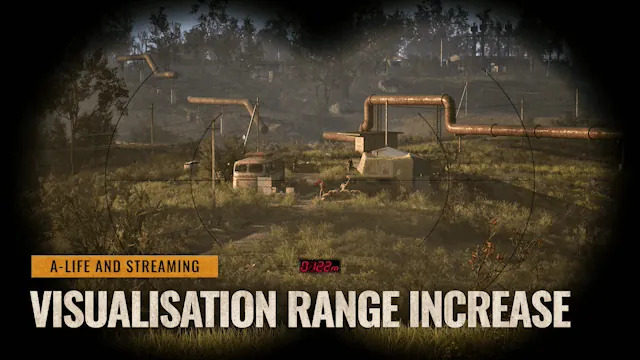
Source: GSC Game World — Official S.T.A.L.K.E.R. 2 Update 2.1 announcement
Which preset should you use?
| Preset choice | What GSC says | A sensible starting point |
|---|---|---|
| Default | Recommended for the best balance of performance, stability, and immersion. | Use this first if you want the least disruptive option. |
| Dynamic | Automatically adjusts the range to match your PC’s capabilities. | Try it if you want the game to manage the setting rather than choosing a fixed higher range. It is not a promise of zero performance impact. |
| Other higher-distance presets (where available) | Lets A-Life NPCs appear farther away; increasing range may affect performance and stability. | Raise it only if the extra distance matters to you, then compare on your own system. |
GSC does not publish a universal “best” PC preset or a guaranteed frame-rate cost. Inven Global’s Update 2.1 coverage reproduces the developer’s stability guidance but does not provide a hardware-by-hardware benchmark. Treat the setting as a preference with a stated trade-off, not a free visual upgrade.
What the setting changes—and what it does not
The control is specifically about A-Life NPC visualisation distance. GSC distinguishes A-Life characters from quest or scripted NPCs and says the increased range applies primarily to A-Life NPCs to help maintain stability. That means it should not be treated as a universal “show every character farther away” switch, and it does not promise that every NPC or activity will be visible across the whole Zone.
The update also adjusts long-distance encounters: GSC says gunfights can be heard farther away depending on the selected preset, with weapon ballistics adjusted accordingly. Those related changes do not turn the visualisation slider into a general-purpose combat or graphics setting.
Update 2.1 introduced another feature that is easy to confuse with the range change: fast travel with friendly or neutral squad leaders. The official image below shows that separate conversation and destination menu, not the A-Life distance control. Squad leaders can guide you to nearby, previously explored locations along their route; that service is separate from how far A-Life NPCs are visualised.
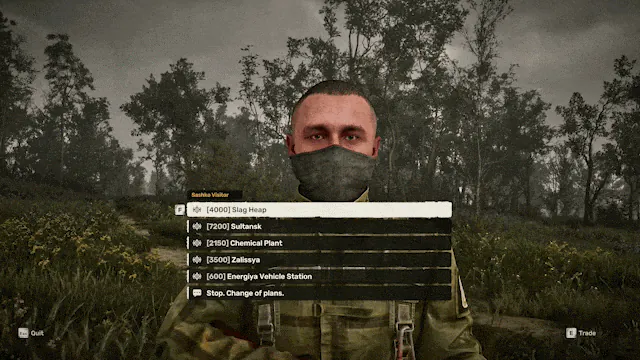
Source: GSC Game World — Official S.T.A.L.K.E.R. 2 Update 2.1 announcement
A quick PC decision guide
Start with Default if stability is your priority. Dynamic is the straightforward alternative when you would rather let the game adapt the range to your PC. A higher option is worth testing only if distant A-Life activity is important to you—and only if your own system remains stable with it enabled.
For a useful comparison, revisit the same save and area after changing one setting at a time. Watch for the performance and stability issues GSC flags; do not rely on a number from someone else’s hardware as a guarantee for yours. If the trade-off is not worth it, switch back to Default. The choice is reversible, and the right range is the one your PC can sustain comfortably.
The menu path and trade-offs above were checked against GSC’s Update 2.1 information on November 1, 2026.